Built-in ticketing for chat and forms
Promote any chat conversation or form submission into a tracked support ticket. Set status, add internal notes, attach screenshots and PDFs - all from your FloatMessage dashboard, no help desk subscription required.
Live ticketing widget - go ahead and try it.
Why teams pick this
One-click from chat or forms
Click the 3-dot menu in any chat conversation or the +Ticket button on any form submission. The ticket links back to the original source so the full message history stays attached.
Status workflow
New → In Progress → Closed. Track resolution time, hand off to teammates, and reopen anytime. Status changes are timestamped automatically.
Internal notes
Add private notes that only your team can see - investigation details, decisions, links to related issues, handoff instructions. Never visible to the visitor.
File attachments
Upload images, PDFs, TXT, CSV, DOC, and DOCX files (up to 5 MB each). Attach screenshots, error logs, or proposal documents directly to the ticket.
How it works
Create a ticket
From a chat conversation, click the 3-dot menu → Create Ticket. From a form submission, click the +Ticket button. The ticket inherits the visitor's name and links back to the source.
Triage and assign
Set status to In Progress when you start working on it. Add internal notes with context for your team. Attach any files the visitor sent or that you need to track.
Close and review
Mark Closed when resolved. The ticket stays searchable forever with the timestamp recorded. Reopen anytime if the visitor follows up.
Built for these use cases
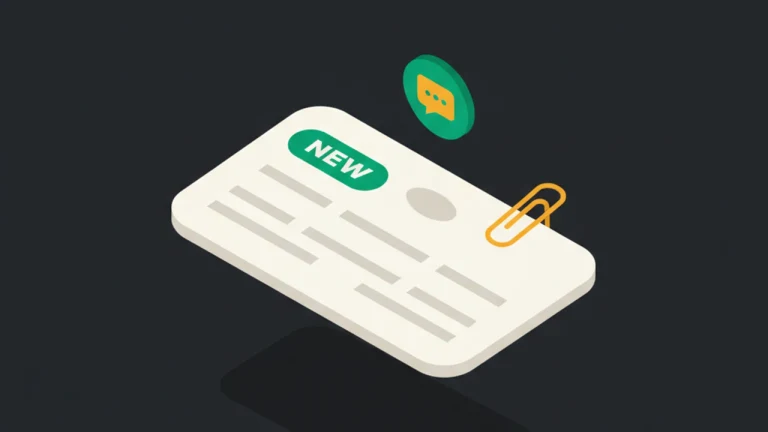
Use case 1
Customer support
Convert chat conversations into tracked support tickets. Add notes about the investigation, attach screenshots from the visitor, hand off to a teammate.
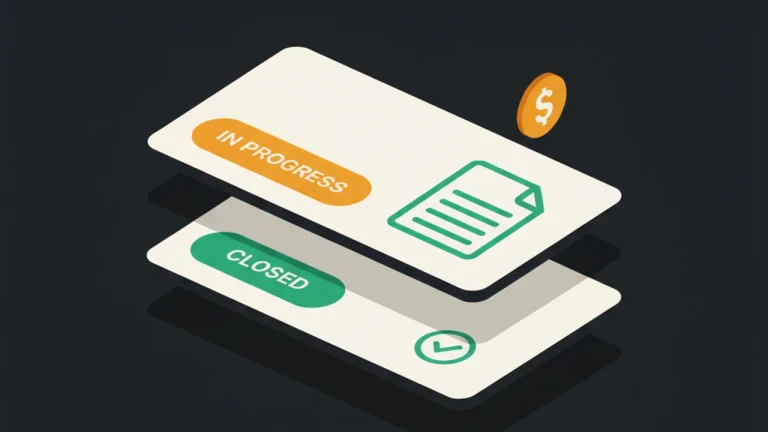
Use case 2
Sales follow-ups
Promote contact form submissions into tickets. Attach proposal PDFs, track deal status with notes, mark closed when the deal lands (or doesn't).

Use case 3
Bug reports
Capture chat reports of bugs as tickets. Attach screenshots and console logs, link to the originating conversation, close when fixed and shipped.
Frequently asked questions
Do I need a separate help desk subscription?
No. Ticketing is included with every FloatMessage paid plan. There's no Zendesk, Intercom, or Freshdesk integration to maintain - tickets live in the same dashboard as your chat and forms.
How big can attachments be?
Each file can be up to 5 MB. Allowed types: JPEG, PNG, WebP, GIF, PDF, TXT, CSV, DOC, DOCX. Files are stored in Cloudflare R2 and linked from the ticket.
Can multiple teammates work on the same ticket?
Yes. On the Enterprise plan, every member of your organization sees all tickets and can update status, add notes, or attach files. Roles control who can edit (admin / editor) vs view-only (viewer).
Are tickets created automatically?
No. Tickets are always a deliberate action - you click Create Ticket from chat or +Ticket from a submission. This prevents your inbox from filling with noise.
What happens if I delete the source conversation?
The ticket stays. The link back to the conversation breaks but the ticket title, notes, status, and attachments are preserved.
Can tickets fan out to Slack, email, or external help desks?
Yes. Add a webhook URL to your account and FloatMessage POSTs ticket-created and status-changed events as JSON - plug into Slack, Zapier, Make, n8n, Linear, GitHub Issues, or your own backend. Email notifications to your team go out via the dashboard's notification settings.
Can the AI auto-reply summarize a long chat into ticket notes?
Yes. Bring your own AI key and the 'summarize conversation into ticket' button compresses long threads into a 3-5 line internal note when the ticket is created. Useful for long support chats where the issue is buried mid-thread.
Are tickets searchable by status, assignee, source page, or country?
Yes. The ticket inbox supports filters for status (new / in-progress / closed), assignee, source type (chat / form / survey), URL the visitor came from, and country (geo-IP at the time the conversation started). Combine filters to triage by SLA risk.
Try ticketing free for 30 days
No credit card required. Full access to every feature.
Start Free 30-Day TrialRelated features
Live Chat & AI
Live Chat
Add a live chat widget to your website in minutes. Real-time visitor messaging, AI auto-replies, proactive triggers, and ticketing - all in one tool.
Forms & Feedback
Contact Forms
Add a popup contact form to any website. Built-in validation, webhook forwarding to Slack/Zapier, and a submissions inbox in your dashboard.
Forms & Feedback
Surveys
Run NPS, ratings, and multi-question surveys on your website. No code. Embed surveys as floating messages and aggregate responses with charts.
Live Chat & AI
Live Chat
Add live chat to your website with an optional smart auto-reply that answers visitor questions 24/7 from your own knowledge base. Human takeover is automatic.
Push & Notifications
Push Notifications
Send web push notifications to your visitors' desktops and phones. Custom VAPID, PWA badge support, no subscription fees. Free with FloatMessage.