Configuring AI Auto-Reply for Customer Support
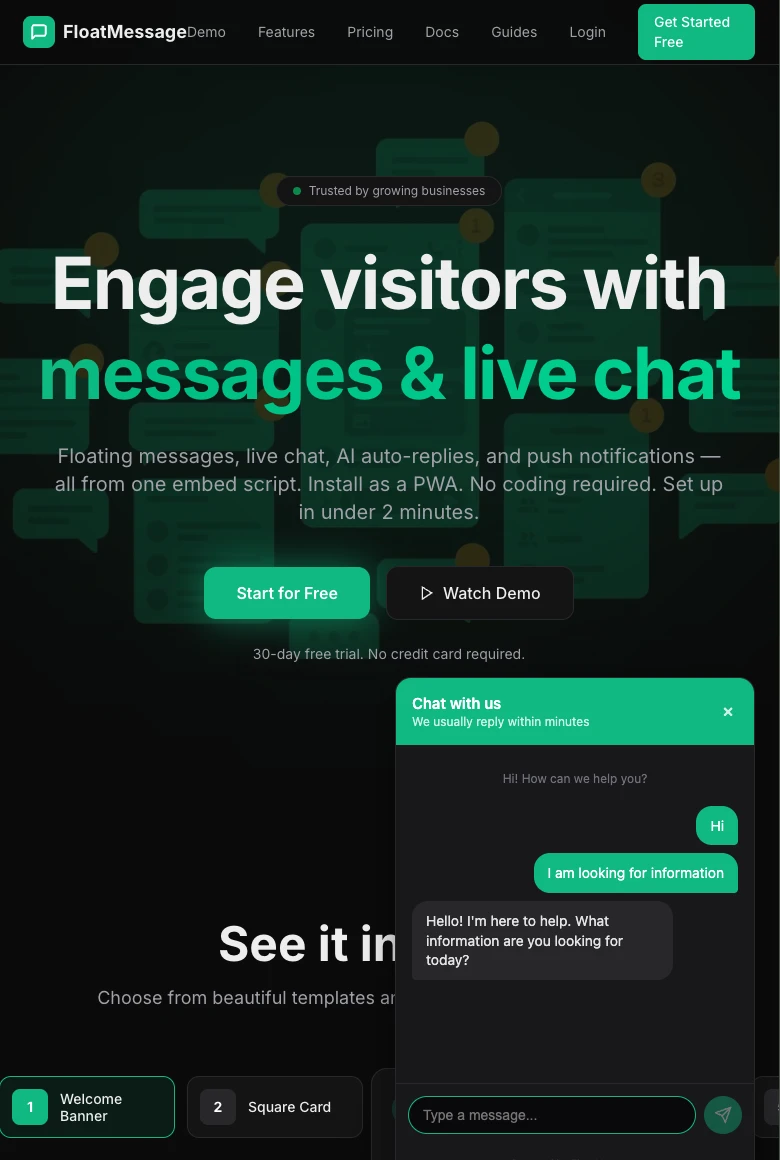
FloatMessage can automatically reply to visitor messages using Google Gemini AI. This means your chat widget can answer questions, provide information, and help visitors 24/7 - even when you're not available. This guide walks you through the full setup.
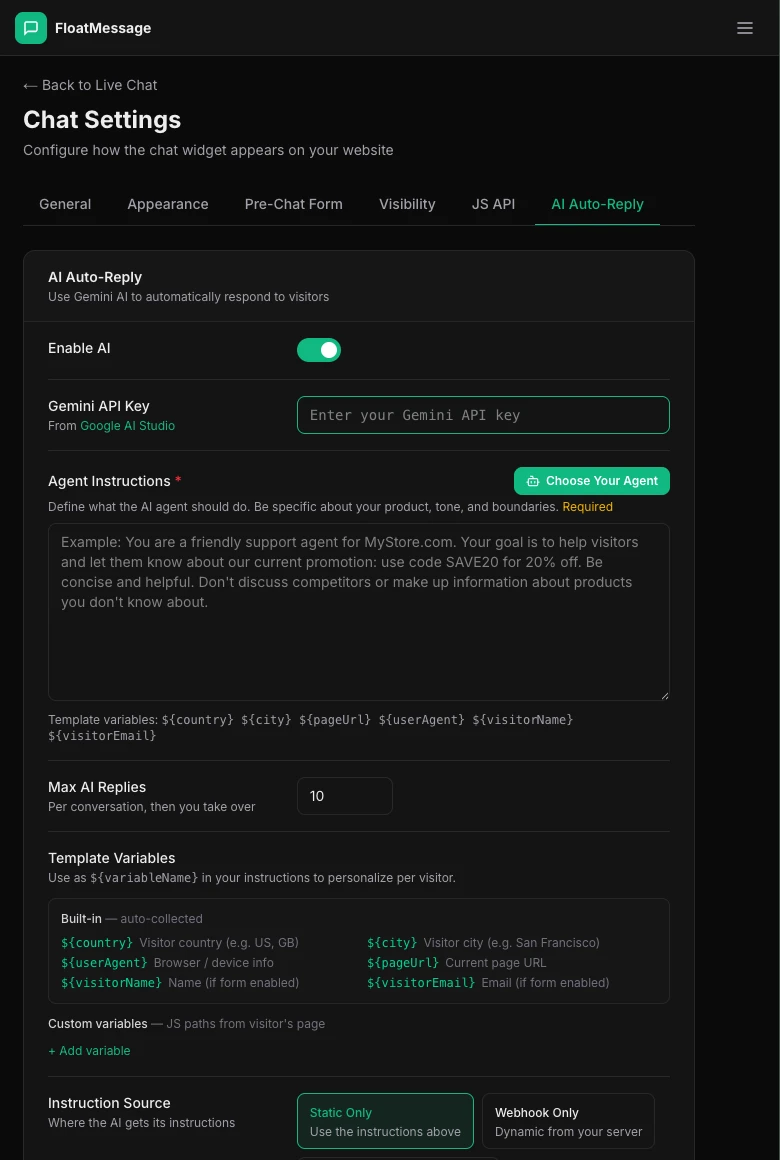
Open the AI Auto-Reply settings
In your Chat Settings, click the AI Auto-Reply tab. Toggle Enable AI on.
Choose an agent template or write your own
Click Choose Pre Agent to browse preset instruction templates. These give your AI a specific personality and knowledge base - pick the one closest to your use case:
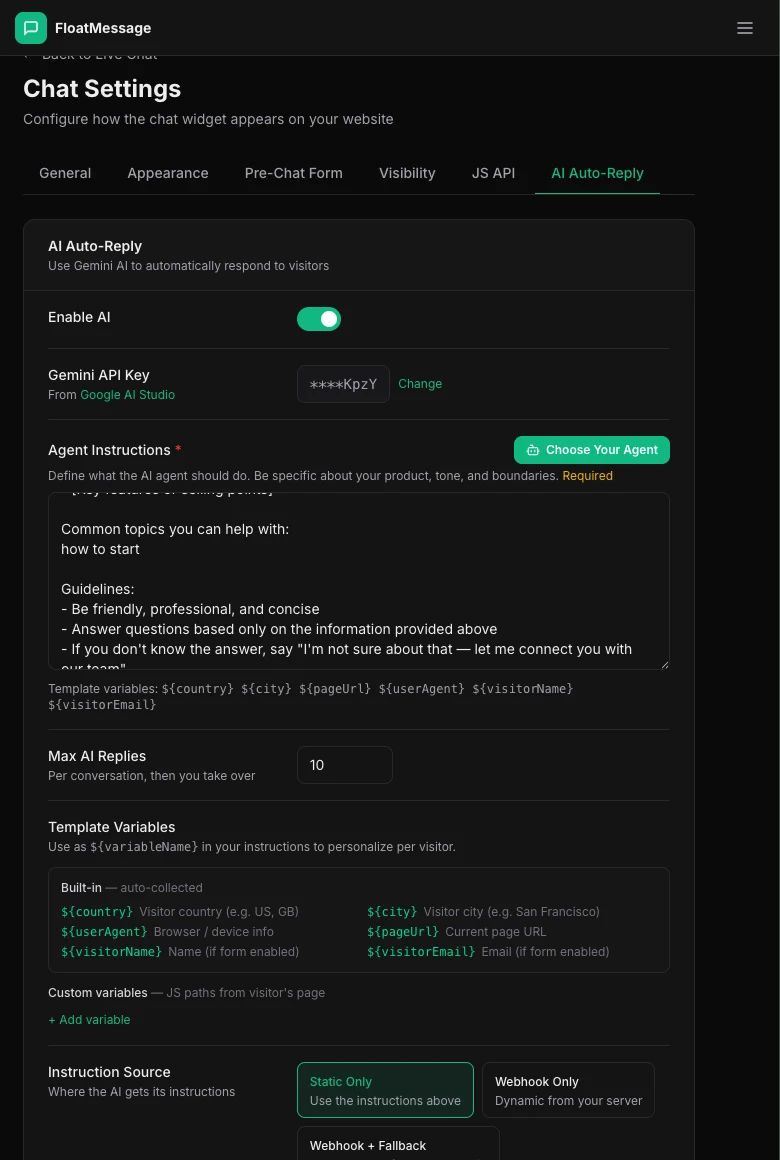
Available presets include:
- Customer Support - answer questions about your product or service
- Coupon / Promotion - share deals and discount codes
- Lead Generation - qualify leads and collect contact info
- Product Recommendations - suggest products based on visitor needs
- Appointment Booking - help visitors schedule meetings
- Onboarding Guide - walk new users through your product
- And more - Restaurant, Real Estate, SaaS Trial Conversion, etc.
Customize your agent instructions
After choosing a template (or starting from scratch), fill in the Agent Instructions field. This tells the AI who it is, what it knows, and how it should respond.
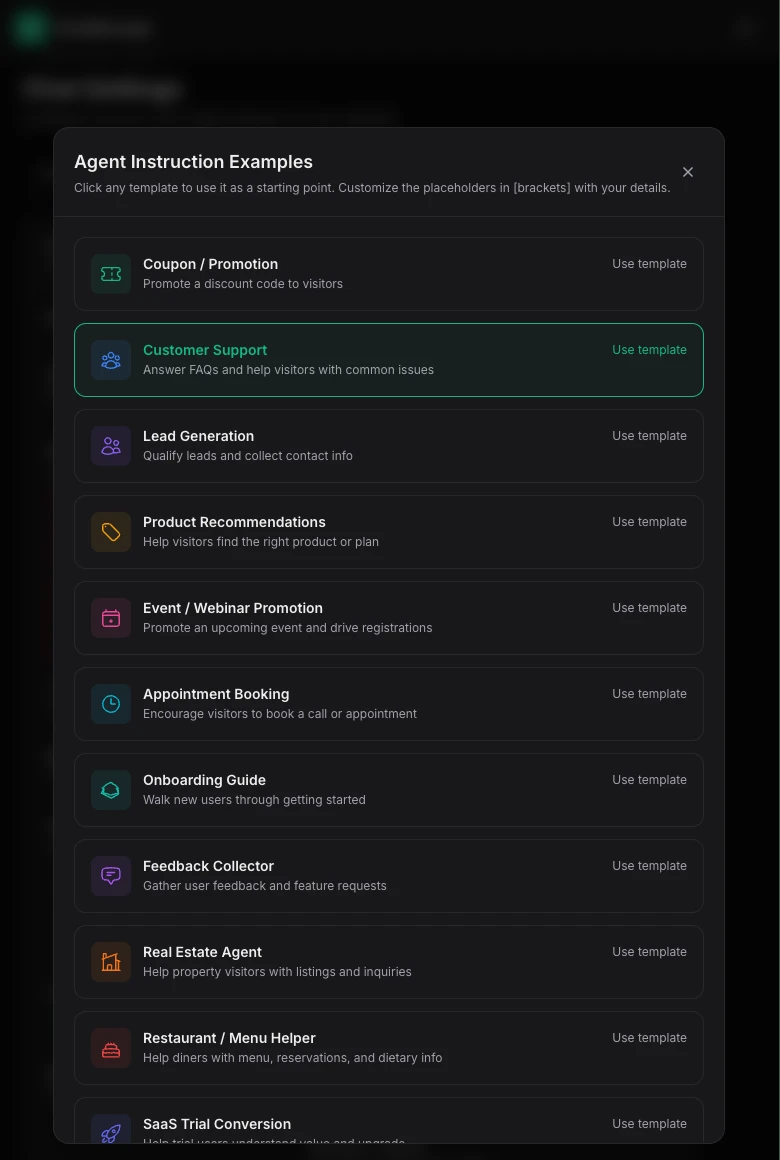
You can also configure:
- Template Variables - dynamic values like
{{businessName}},{{supportEmail}},{{discountCode}}that get injected into the instructions. Update them anytime without rewriting the full prompt. - Max AI Replies - limit how many automatic replies the AI sends per conversation before handing off to you.
- Instruction Source - choose between static instructions or a webhook that provides dynamic context per visitor.
Click Save Settings when you're done.
See AI auto-reply in action
Open your website and send a message through the chat widget. The AI will respond automatically based on your instructions.