Setting Up Push Notifications for Chat
Push notifications alert you instantly when a visitor sends a chat message - even when you don't have the dashboard open. You can receive notifications on your desktop, phone, or tablet. This guide shows you how to enable them.
Go to the Live Chat page
Sign in to your FloatMessage dashboard and click Live Chat in the sidebar. You'll see an Enable Notifications button at the top of the page.
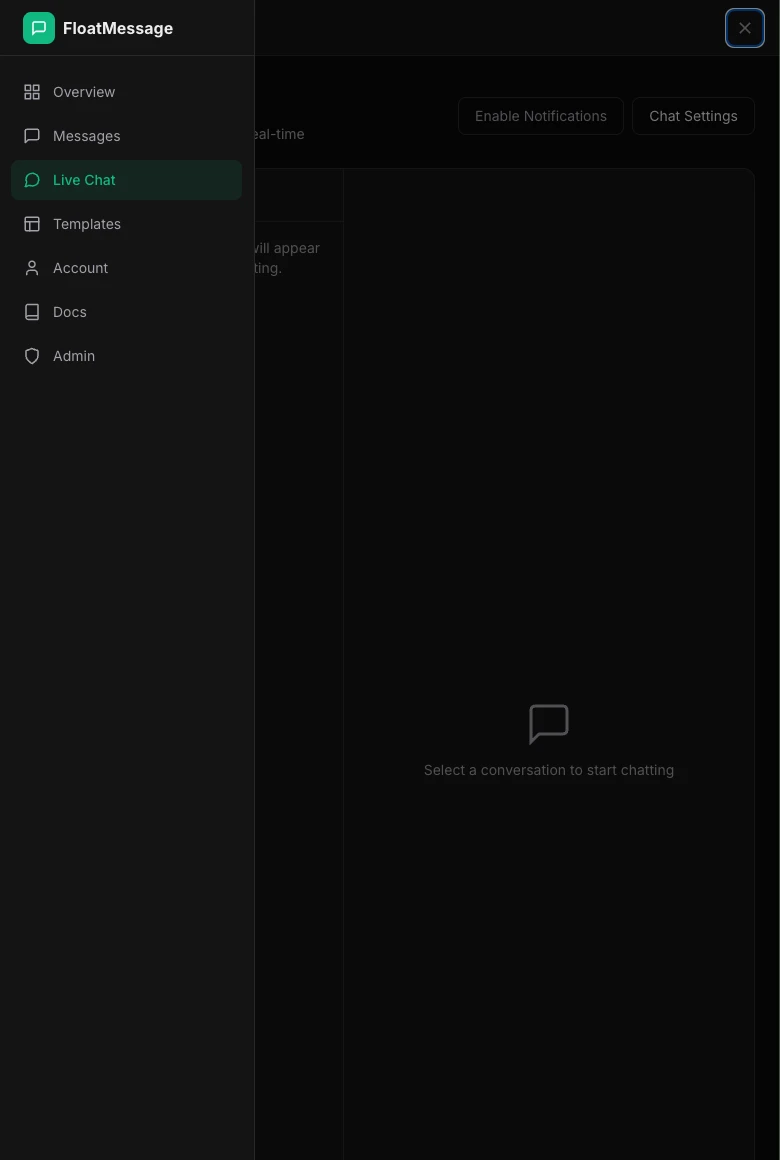
Click Enable Notifications
Click the Enable Notifications button. Your browser will show a permission prompt asking to allow notifications from FloatMessage.
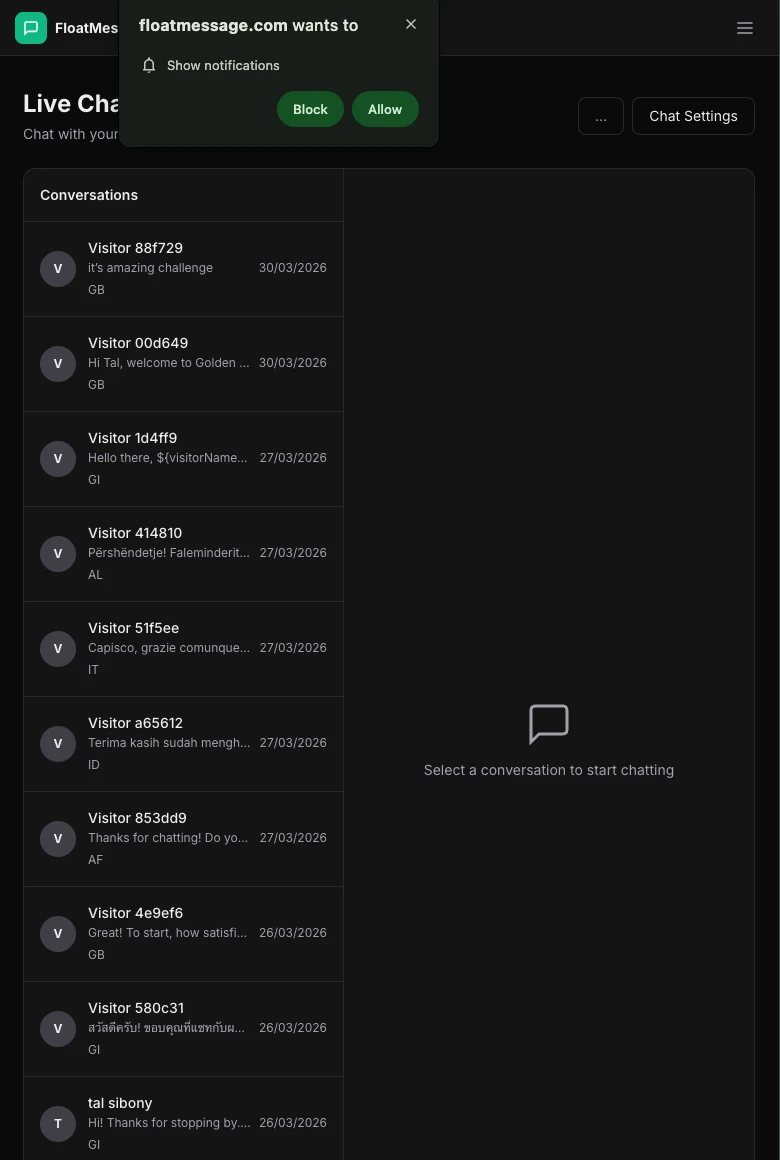
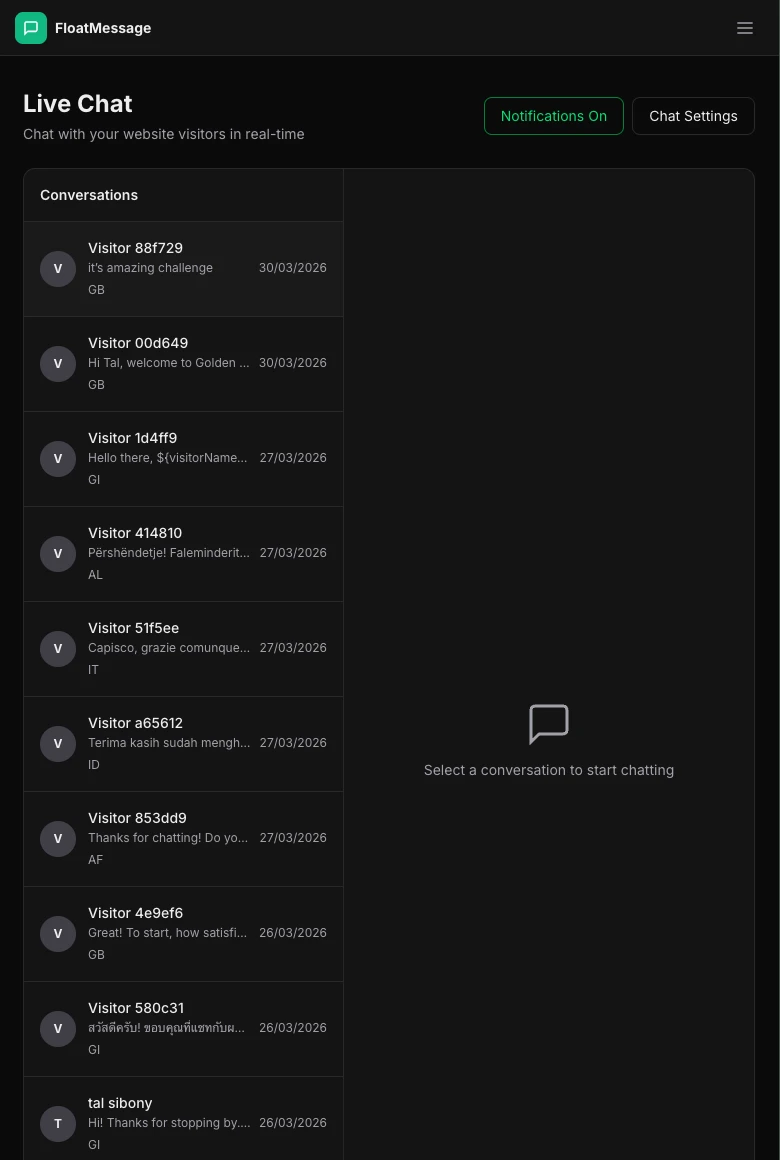
Click Allow. The button will change to Notifications On - you're all set.
Get notifications on your phone
To receive notifications on your phone or tablet, install FloatMessage as a PWA (Progressive Web App):
Chrome / Edge (Android)
- Open floatmessage.com in Chrome or Edge
- Tap the three-dot menu and select Add to Home screen or Install app
- Open the app and enable notifications from the Live Chat page
Safari (iOS 16.4+)
- Open floatmessage.com in Safari
- Tap the Share button and select Add to Home Screen
- Open the app from your home screen and enable notifications
How notifications work
Once enabled, you'll receive a push notification every time a visitor sends a message through your chat widget. Clicking the notification takes you straight to the conversation in your dashboard.
Good to know
- Only visitor messages trigger notifications - your own replies don't
- Notifications work across multiple devices - enable them on your laptop and phone to get alerts everywhere
- If the AI auto-reply is handling a conversation, you'll still get notified so you can jump in when needed