Platform Setup4 min read

How to Add FloatMessage to Your WordPress Site

This guide walks you through installing the official FloatMessage WordPress plugin. By the end, you'll have floating messages and optionally live chat running on your WordPress site — no coding required.

1

Sign up and create your first message

Go to floatmessage.com/login and sign in with Google. You'll get a 30-day free trial with full access — no credit card required.

In the dashboard, click Messages in the sidebar, then New Message. Pick a template, customize it, and save.
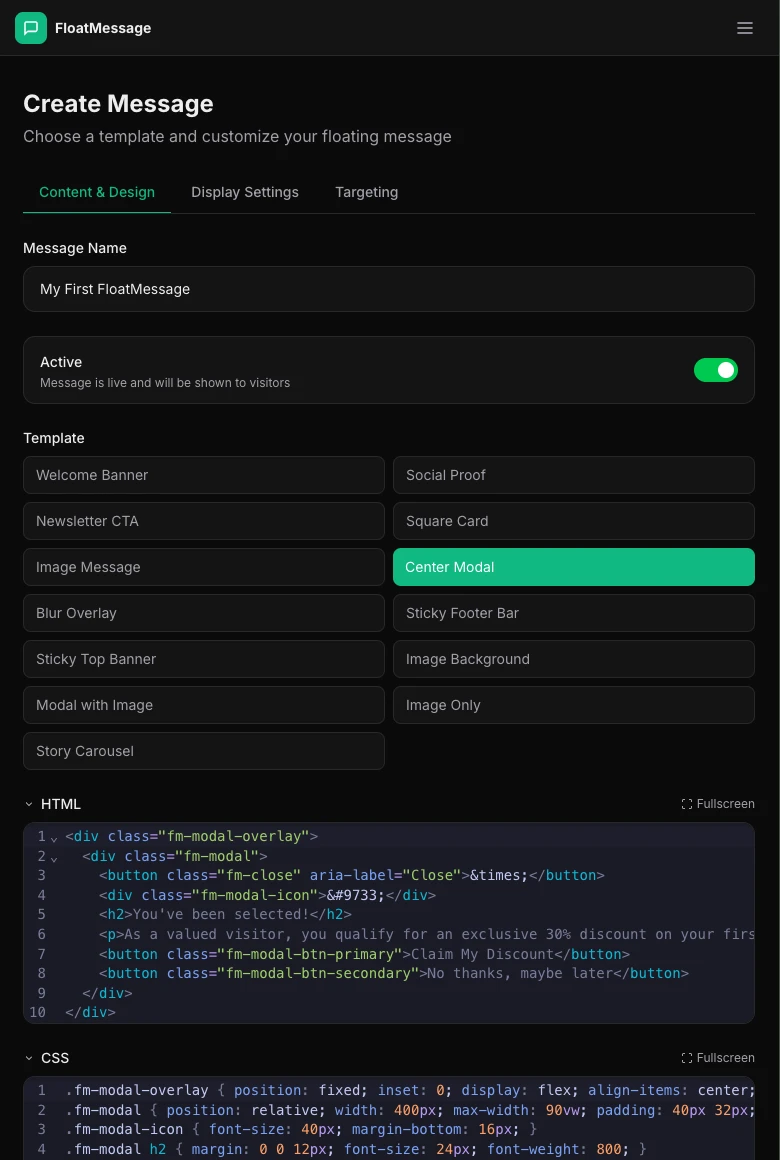
FloatMessage dashboard showing the message editor with template selection and HTML/CSS editing
Create and customize your message in the dashboard
2

Copy your Message ID or User ID

Go back to your Dashboard home page. You'll see your embed snippet with your User ID — you'll need this for the plugin settings.

You can also use the Copy ID button next to any message to get individual Message IDs.

FloatMessage dashboard showing the embed snippet with User ID and install instructions
Find your User ID in the embed snippet on the dashboard
Tip: Using the User ID loads all your active messages and chat automatically. You can also use individual Message IDs if you want more control over which messages appear.
3

Download the FloatMessage WordPress plugin

Visit the WordPress Plugin documentation page and click the Download ZIP button to download the plugin file.

FloatMessage docs page showing the WordPress Plugin download button
Download the plugin ZIP from the FloatMessage docs
4

Install and activate the plugin

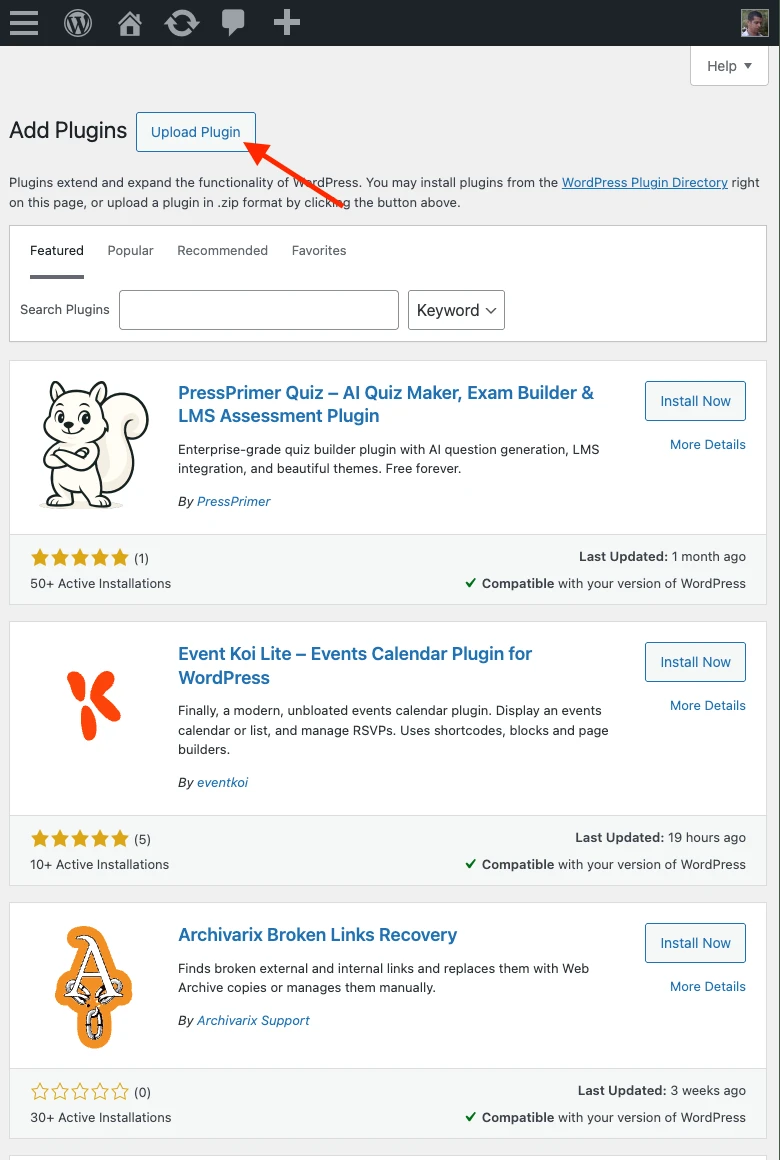
In your WordPress admin, go to Plugins → Add New and click the Upload Plugin button at the top.

WordPress admin Plugins page with the Upload Plugin button highlighted
Click Upload Plugin at the top of the Add Plugins page

Click Choose File and select the floatmessage-wp.zip file you downloaded.

WordPress upload plugin form with Choose File button
Select the floatmessage-wp.zip file from your computer

Once the file is selected, click Install Now.

WordPress upload form showing floatmessage-wp.zip selected with Install Now button
Click Install Now to upload and install the plugin

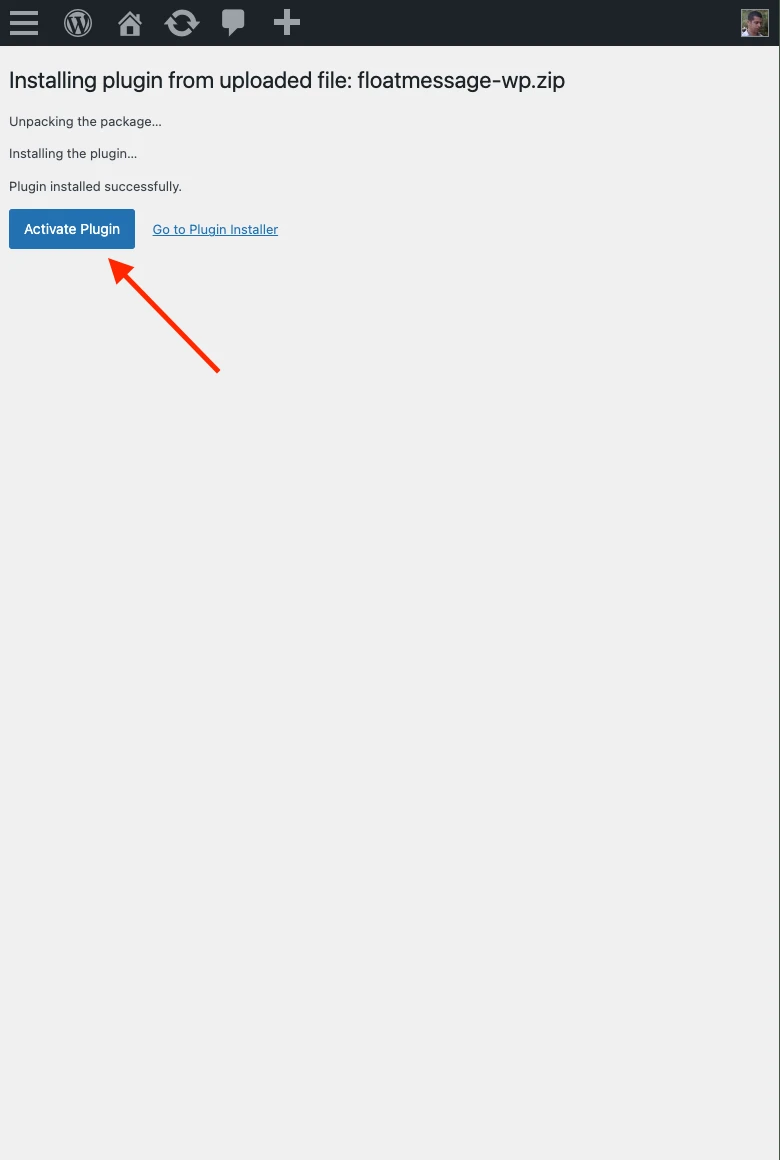
After installation completes, click Activate Plugin.

WordPress showing plugin installed successfully with Activate Plugin button
Click Activate Plugin to enable FloatMessage
5

Configure the plugin settings

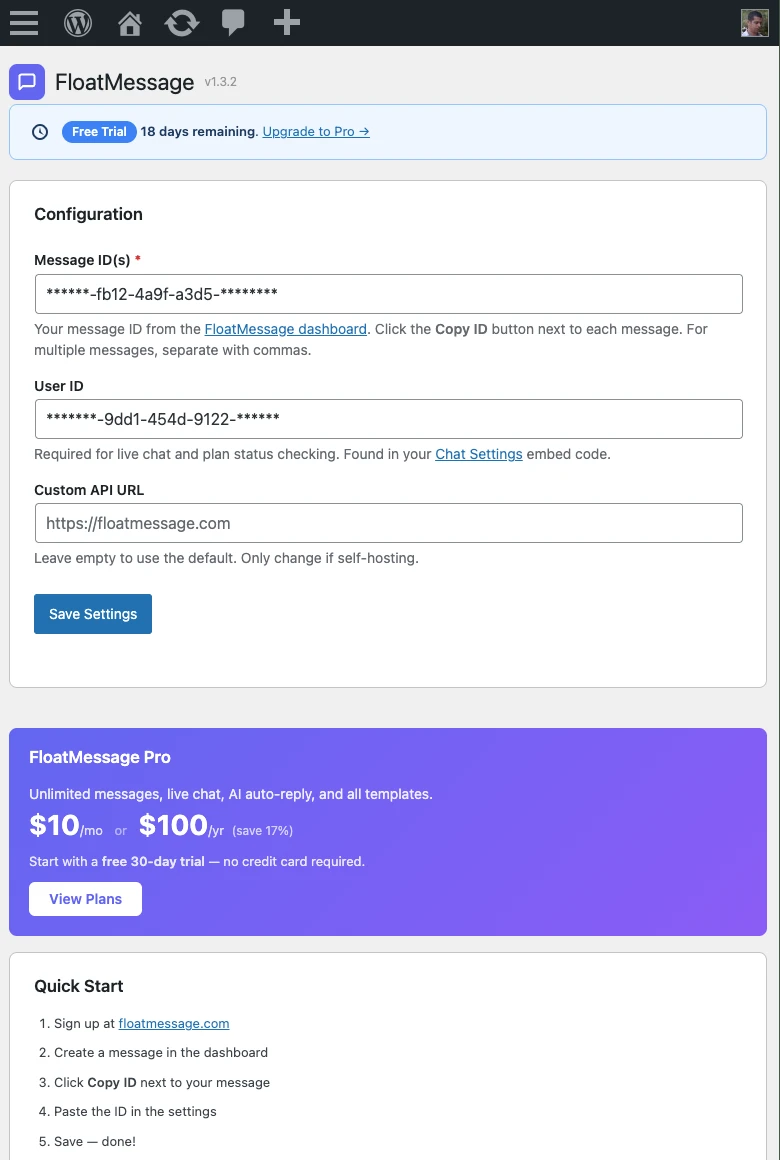
After activation, go to Settings → FloatMessage. Enter your Message ID(s) and User ID from step 2.

FloatMessage WordPress plugin settings page showing Message ID, User ID, and API URL fields
Enter your IDs in the FloatMessage settings page
Note: The Message ID(s) field lets you display specific messages — separate multiple IDs with commas. The User ID is required for live chat and shows your plan status. You can use both together.

Click Save Settings and you're done.

6

Verify it's working

Open your WordPress site in a new tab. Your floating message should appear based on the trigger you configured. You can also confirm the plugin is active in your Plugins list.
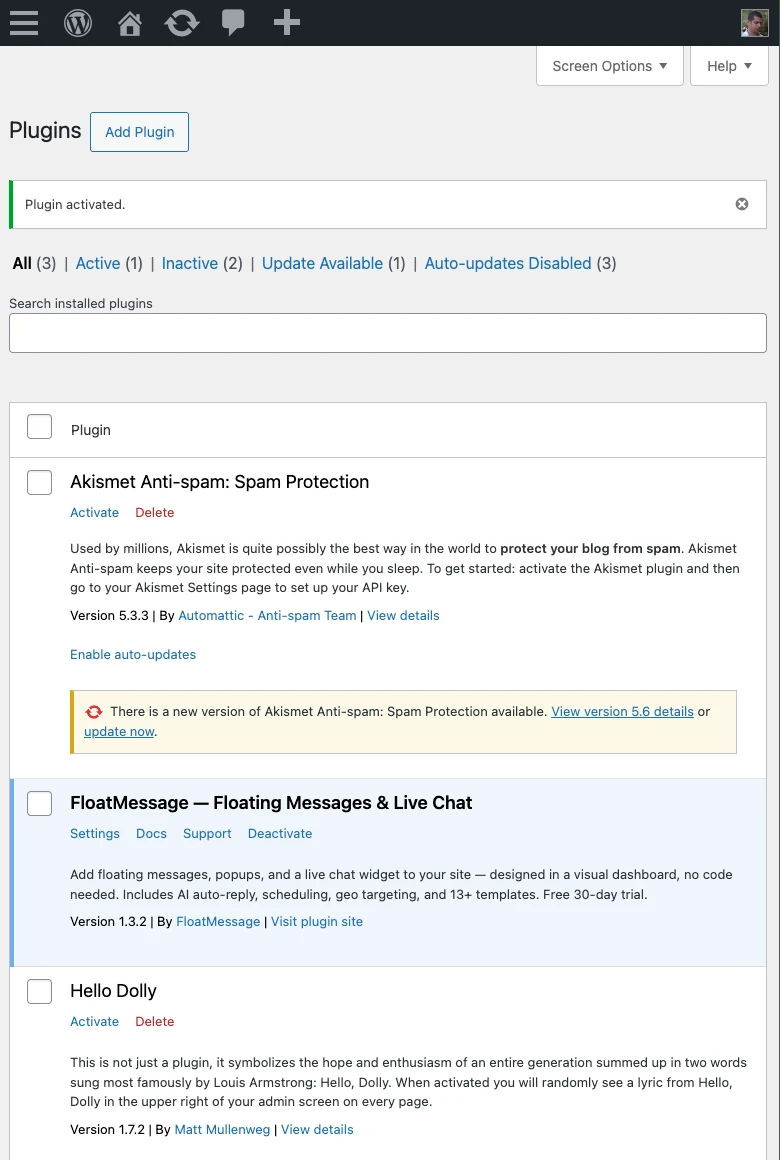
WordPress plugins list showing FloatMessage — Floating Messages & Live Chat activated
FloatMessage is now active in your plugins list
Tip: The plugin supports auto-updates — new versions will appear in your WordPress Dashboard → Updates page automatically.
Tip: You can manage all your messages, chat settings, and analytics from the FloatMessage dashboard — no need to touch WordPress again.