Create a Welcome Message for First-Time Visitors
A welcome message is one of the most effective ways to engage new visitors. Show a friendly greeting, highlight a special offer, or guide them to key pages - then make sure it only appears once so returning visitors aren't interrupted. Here's how to set it up.
Create a new message
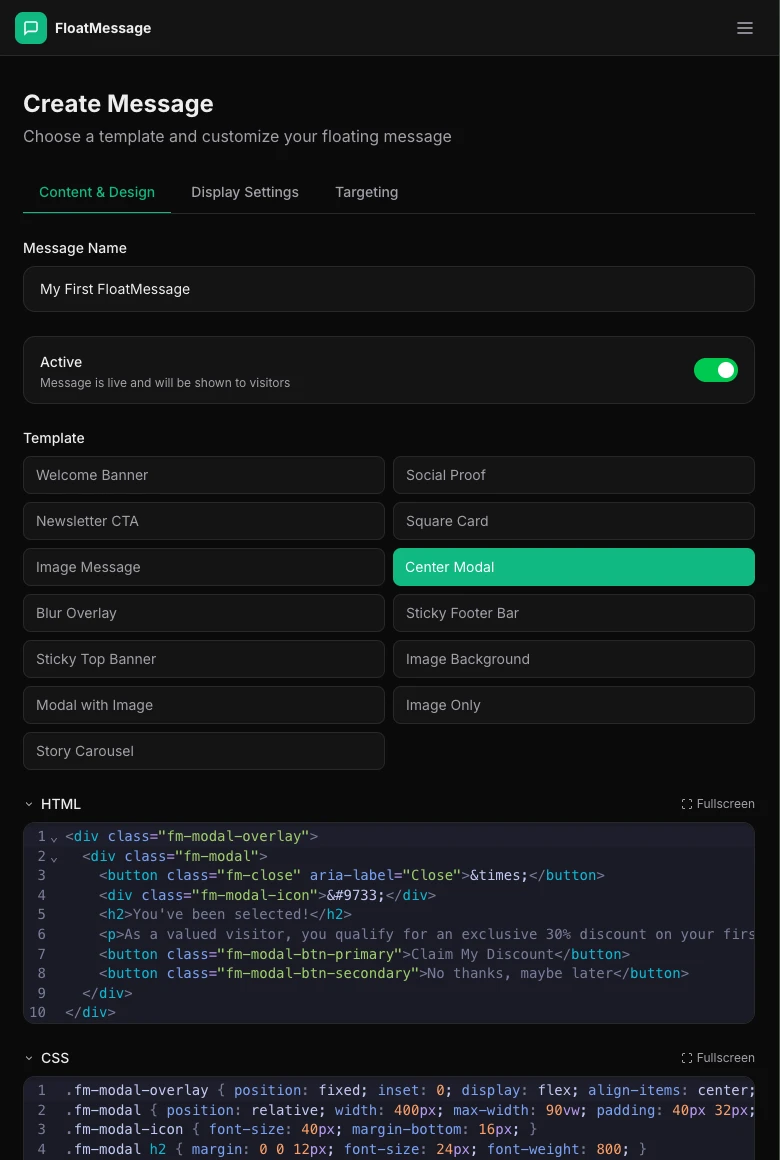
In your FloatMessage dashboard, click New Message. Choose a template - Banner or Modal work great for welcome messages.
Write your welcome content
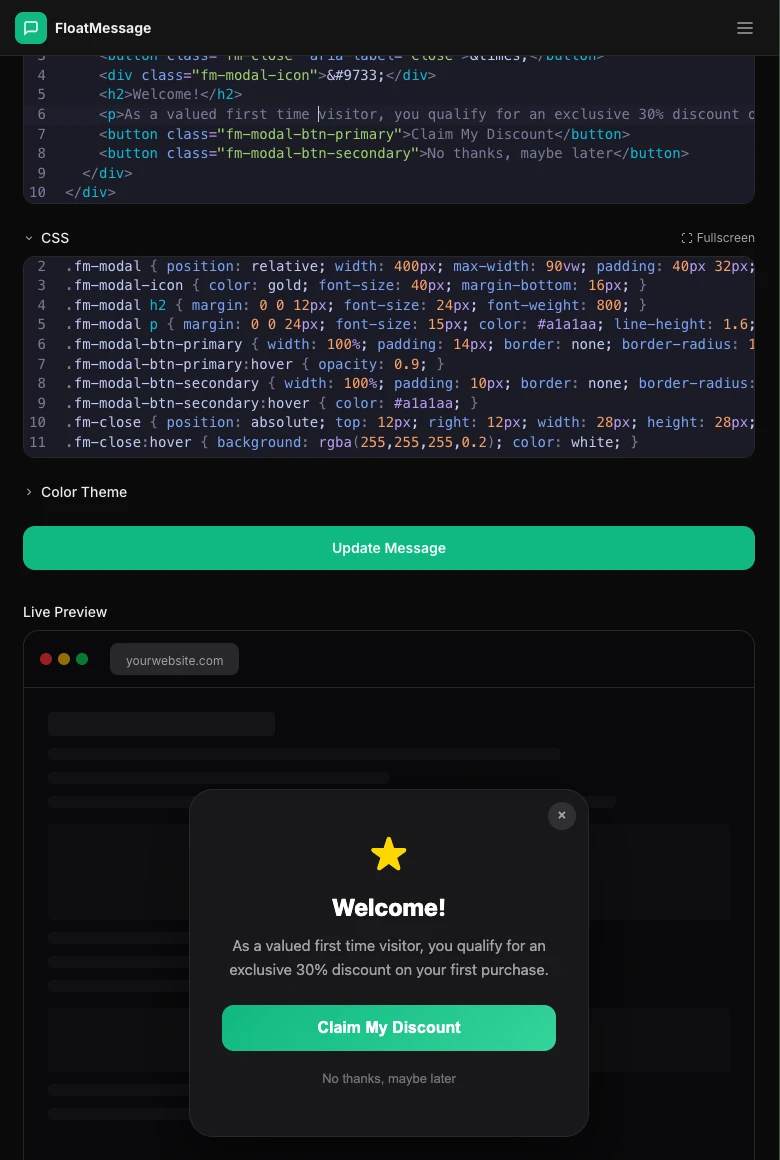
In the Content & Usage tab, customize the HTML and CSS to create your welcome message. A good welcome message is:
- Short and friendly - one or two sentences max
- Value-driven - offer something useful (discount, free resource, quick guide)
- Action-oriented - include a clear CTA button
Configure display settings for first-time visitors
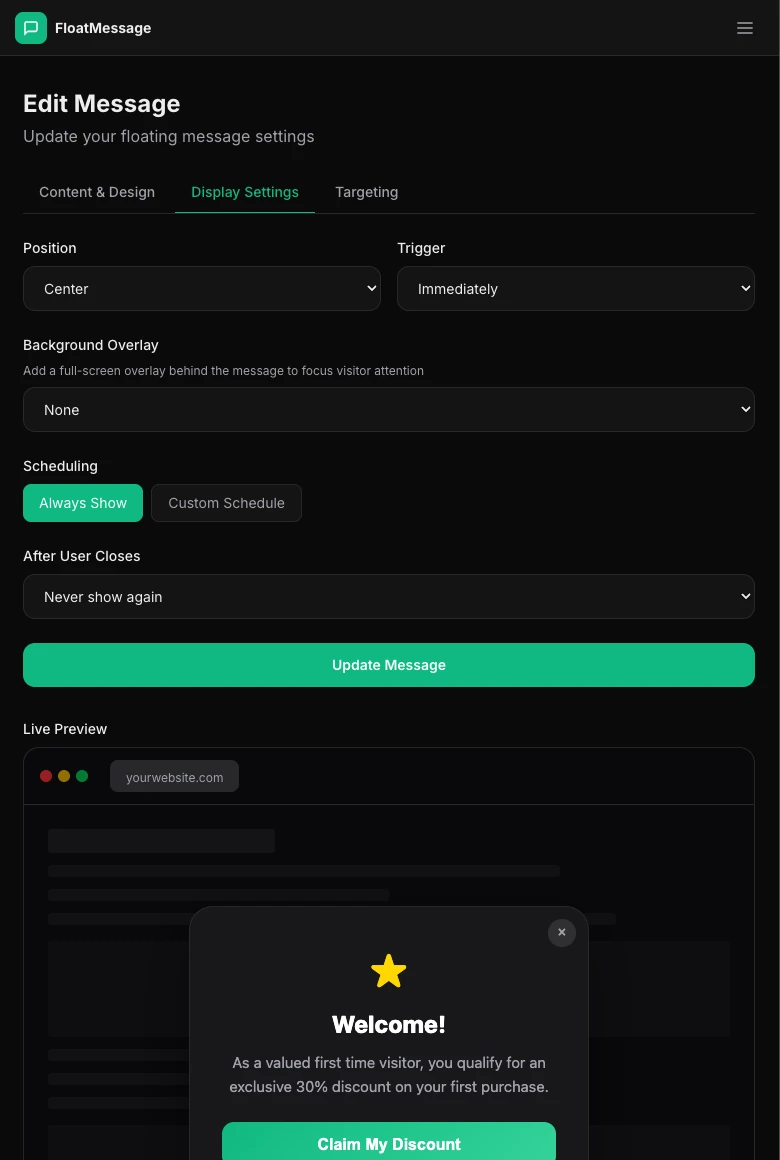
Click the Display Settings tab. This is where you make the message show only once per visitor:
- Position - choose where the message appears (Center works well for welcome messages)
- Trigger - set to Immediately so visitors see it right away
- After User Closes - set to Never show again so returning visitors won't see it a second time
Optional: Add targeting
You can further refine who sees the welcome message using the Targeting tab:
- Target URLs - only show on your homepage or landing pages
- Geo-targeting - show different welcome messages by country
- Scheduling - only show during a promotional period
Save and activate
Click Update Message to save your changes. Make sure the message is set to Active - then open your site in a new tab to see it in action.